
Guide
How to Make a Connected Pet Portrait Stencil
By Amir Baker, founder of StencilCut · Updated
A connected pet portrait stencil turns a clear pet photo into bold retained shapes joined strongly enough to remain one piece after cutting. The useful workflow is to choose a readable pose, remove the background, preserve identity around the face and silhouette, simplify fur into larger regions, bridge isolated details, then inspect the export at its final dimensions before testing the material.
Create a pet portrait Cut designPermission-confirmed customer result
From pet photo to black acrylic cut
Nicola shared the source and finished piece, plus confirmation that the design work stayed inside StencilCut.
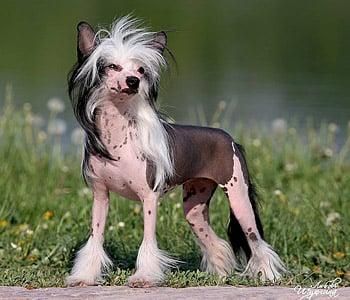
The pet's stance, crest, ears, face, and coat outline are visible.
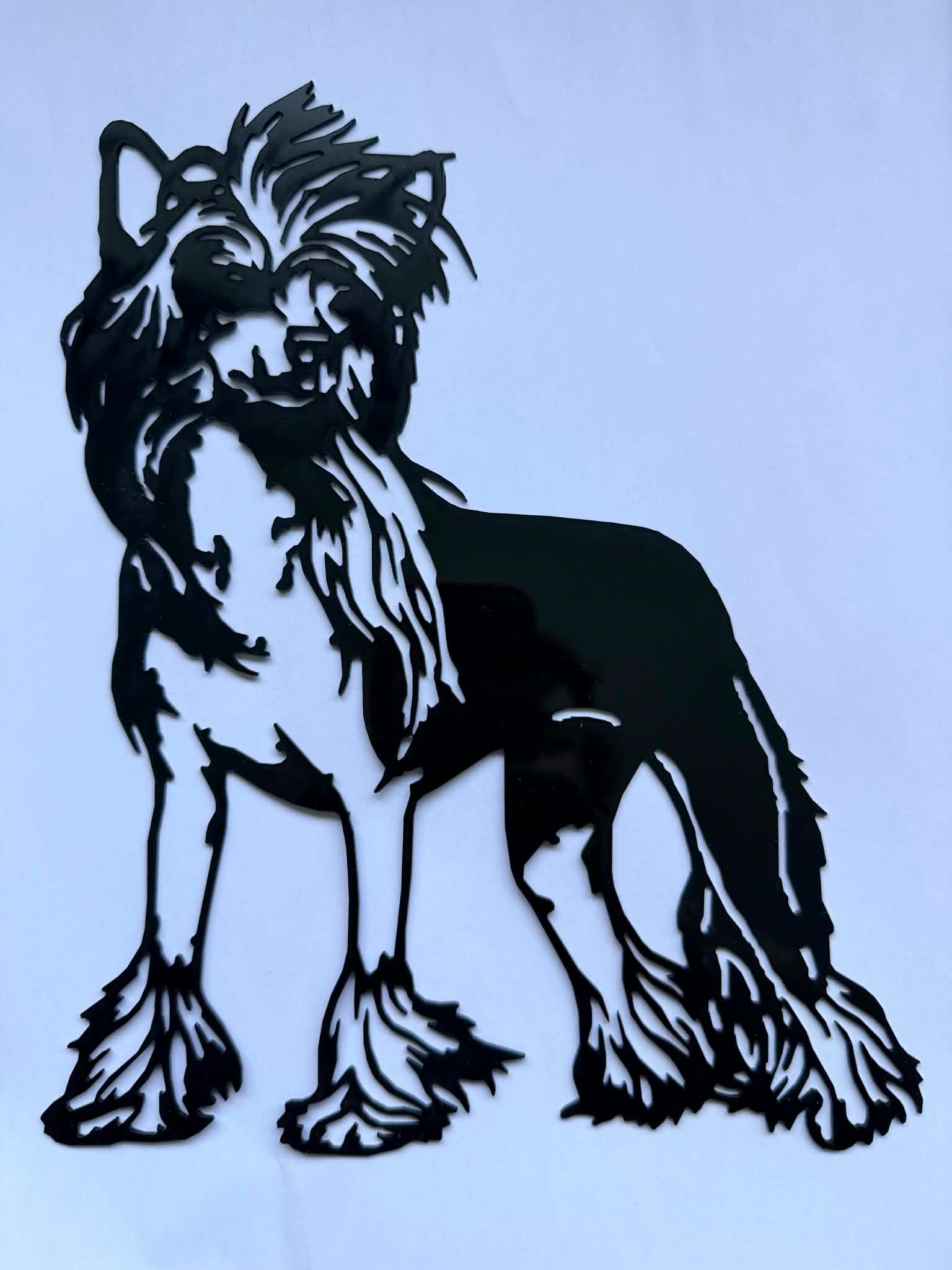
A real material result photographed by the customer after export through LightBurn.
Verified details: black acrylic, LightBurn, size adjustment after export, and no outside design edits. Machine, thickness, dimensions, and settings were not provided.
Read the full customer storyStep by step
- 1
Choose a recognizable photo
Use a sharp image with visible eyes, muzzle, ears, coat shape, and an outline that does not disappear into the background.
- 2
Remove scenery and simplify
Keep the pet and remove unrelated objects. Convert colour and small texture into a manageable set of bold black and white regions.
- 3
Protect identity features
Compare the preview with the source. Keep the eye direction, muzzle, ear shape, markings, and overall pose readable before adding more detail.
- 4
Connect retained pieces
Bridge isolated retained regions without drawing bars across the face. Check eyes, markings, gaps between legs, and thin fur shapes.
- 5
Size, inspect, and test
Set the intended dimensions, inspect narrow connections and duplicate paths in the laser software, then test a representative detailed area on suitable scrap.
Identity comes before coat texture
A pet portrait succeeds when the owner recognizes the animal from across the room. Eye placement, muzzle length, ear shape, stance, and distinctive markings carry more identity than hundreds of small fur strokes. Preserve those anchors first, then keep only the texture that still reads at the final size.
Cut portraits need connected retained material
A black shape on screen may become retained material, while surrounding white may become waste, depending on the project. Identify what stays before bridging. An isolated eye, marking, or patch that belongs to the retained portrait needs a connection. An intentional opening does not automatically need to be filled.
Place bridges around the feature
A connector should support the piece while preserving the pet. For an eye or enclosed marking, balanced supports from different sides can look more intentional than stacked bars from one direction. Follow coat shadows or existing contours where possible, and avoid covering the gaze, muzzle, or distinctive markings.
Final size changes every connection
Scaling a design down also scales every bridge and narrow neck. Decide the physical width before judging strength, then inspect the smallest retained features with the chosen material, thickness, kerf, handling, and machine workflow in mind. Connectivity software can find separation, but it cannot certify physical strength.
What the real customer result proves
The pair below is permission-confirmed customer evidence. Nicola uploaded the Chinese Crested photo to StencilCut, downloaded the SVG, adjusted its size in LightBurn, and cut it from black acrylic without outside design edits. It demonstrates one successful workflow. The available evidence does not identify the laser model, acrylic thickness, exact dimensions, or settings, so none are claimed here.
Review before the full cut
Compare the export with the source and check that the face, silhouette, limbs, and coat pattern still read. In the laser software, confirm dimensions, closed paths, intended holes, and single versus duplicate cut lines. Test a representative detailed section on suitable scrap using the machine and material manufacturer guidance.
Try it yourself
Upload a pet photo, choose Cut, and compare identity and connectivity before downloading.
Create a pet portrait Cut designFrequently asked questions
How do I keep a pet stencil recognizable?
Prioritize eye direction, muzzle, ears, silhouette, pose, and distinctive markings. Remove small texture that competes with those identity features.
Does every white hole need a bridge?
No. Decide which colour represents retained material. Bridge a retained island that would separate, but keep intentional cutouts when they do not trap a piece you need.
How wide should pet portrait bridges be?
There is no universal width. Set the final dimensions first, then choose connections for the material, thickness, measured kerf, handling, and machine workflow. Test a detailed area on scrap.
Can I use the same design for wood and steel?
The geometry can transfer when the receiving software supports the format, but minimum features, kerf, heat effects, handling, and required support can differ. Have the fabricator review the final-size file for the chosen process.
Is the customer example a digital mockup?
No. The first image is Nicola's source photo and the second is her photograph of the finished black acrylic cut. The exact machine, thickness, dimensions, and settings were not provided.
Related guides
How to Choose a Photo for Laser Cutting or Engraving
Five checks that make a photo easier to cut or engrave.
Cut vs Engrave: Which Laser Project Do You Need?
Choose the right workflow and file before you generate.
What Is Bridging in Laser Cutting? (Floating Islands Explained)
Why parts fall out of stencils, and how bridges fix it.
How to Convert a Photo to SVG for Laser Cutting
Turn any photo into a clean, cuttable SVG, the right way.