Prepare a Photo for Laser Engraving, Start to Finish
Crop, brighten, strip the background, and convert to dots the laser can actually burn. The whole photo-to-engraving workflow lives in one free browser editor, with true-size export at the end.
A free browser editor that takes a photo from camera roll to engrave-ready file. Crop it, fix brightness and contrast, remove the background, then convert with threshold, dithering (Floyd-Steinberg, Atkinson, ordered), halftone, stipple, or pencil styles. Export at true size and engrave on wood, slate, acrylic, or glass.
One tool, whole workflow
Crop, exposure, background removal, dithering, and export in one free browser editor. No hopping between apps.
Real dithering algorithms
Floyd-Steinberg, Atkinson, and ordered dithering, plus halftone, stipple, and pencil styles, each previewed live.
True-size export
Set the engraving width in millimetres and the PNG exports at matching resolution, so it lands at the right size in your laser software.
Any material
Previews suit wood, slate, acrylic, and glass, including inverted output for dark materials that engrave light.
How to use the prepare a photo for laser engraving, start to finish
- 1
Crop and straighten
Open the photo in the free editor and crop to the part you want to engrave. Tight crops engrave better because every burned dot goes to the subject.
- 2
Fix brightness and contrast
Lasers compress tones, so push contrast slightly past what looks right on screen and lift the shadows where detail hides. The live preview shows the engraved result as you adjust.
- 3
Remove the background
One click strips the backdrop, in the browser with nothing uploaded, so the subject engraves on a clean field.
- 4
Choose a conversion
Pick plain threshold, Floyd-Steinberg, Atkinson, or ordered dithering, or go stylised with halftone, stipple, or pencil sketch. Each preview shows how the tones become dots.
- 5
Export at true size
Set the physical width in millimetres and download a PNG. It drops straight into LightBurn, RDWorks, the Glowforge App, or xTool Creative Space at the right size.
Why photos fail on the laser without prep
A laser has no grey ink. At any single point it either burns or it does not, so a photo sent straight to the machine comes out as a muddy blob where all the midtones merge. Good photo engraving is really a conversion problem: the tones in the photo have to become a pattern of dots the laser can place one at a time, which is exactly what dithering does. Preparation also covers the unglamorous fixes that matter most: cropping to the subject, raising contrast because engraving compresses tones, and removing the background so burn time and contrast are spent on the subject instead of clutter.
Threshold, dither, halftone, or pencil: which to pick
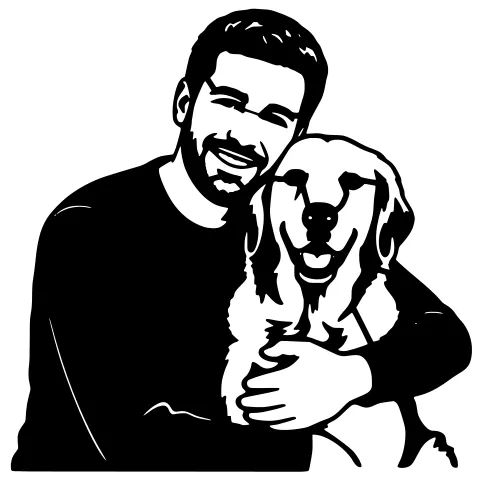
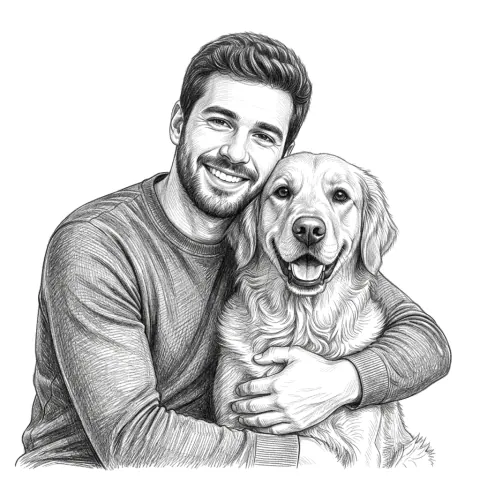
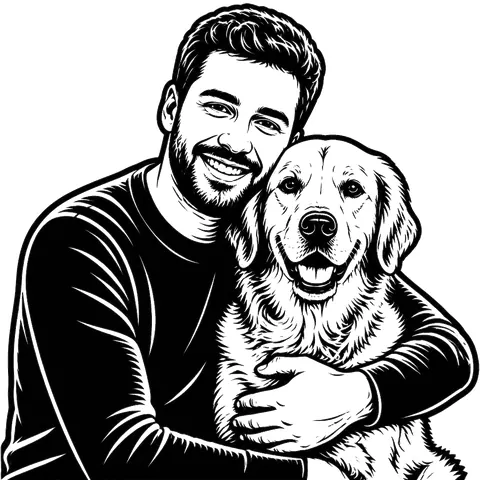
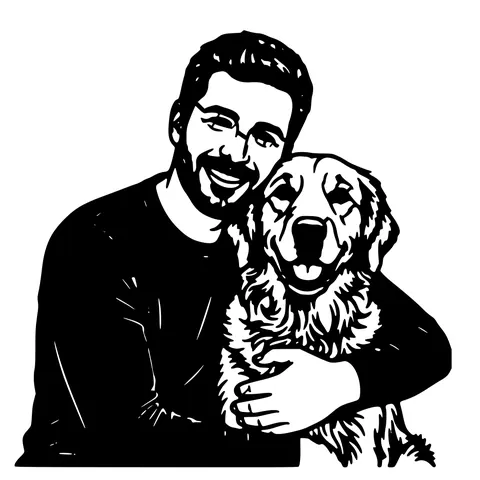
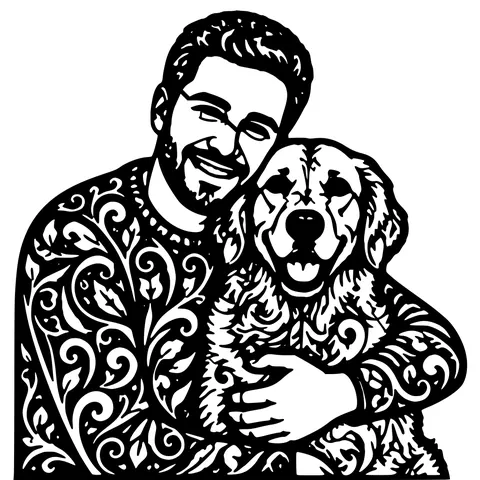
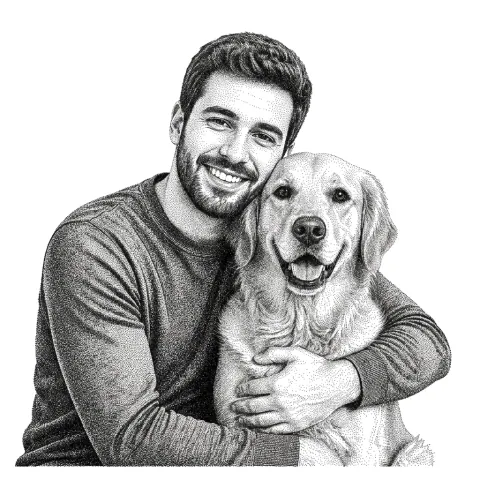
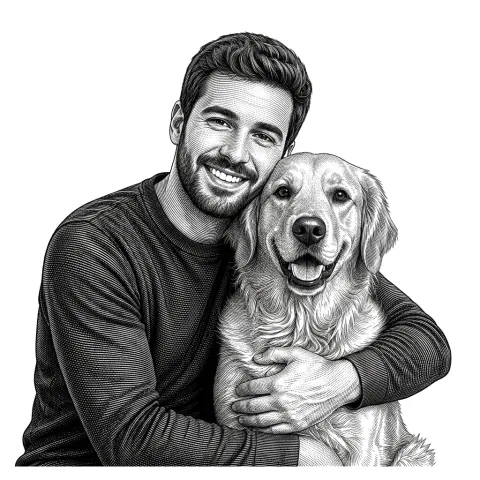
Plain threshold turns every pixel pure black or white and suits logos and text, not faces. Floyd-Steinberg dithering is the default for photos on wood: it spreads error to neighbouring pixels and holds fine detail. Atkinson runs lighter and keeps highlights airy, which works well on slate and glass. Ordered dithering produces a regular grid that survives low-resolution engraving on diode machines. Halftone gives the classic newspaper dot look, stipple builds tones from hand-placed-looking dots, and pencil makes the engraving read like a sketch. The editor previews each one live, so you pick by eye instead of by guesswork.
Material matters: wood, slate, acrylic, glass
Light materials like plywood, maple, and cast acrylic engrave dark, so the image stays as it is: dark dots on a light field. Dark materials flip the rule. Slate, anodised aluminium, and painted surfaces engrave light, so the photo needs to be inverted before burning or the result comes out as a negative. Glass frosts white and behaves like a dark material too. The editor handles the inversion for you and lets you compare both directions in the preview. Whatever the material, export at true size in millimetres, run a small test patch, and dial in power and speed before committing the full photo.
See it in action
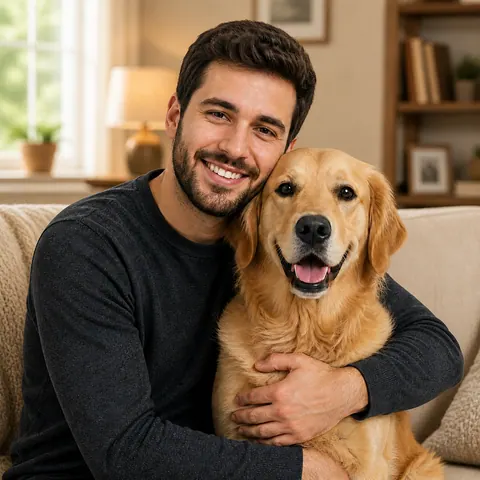
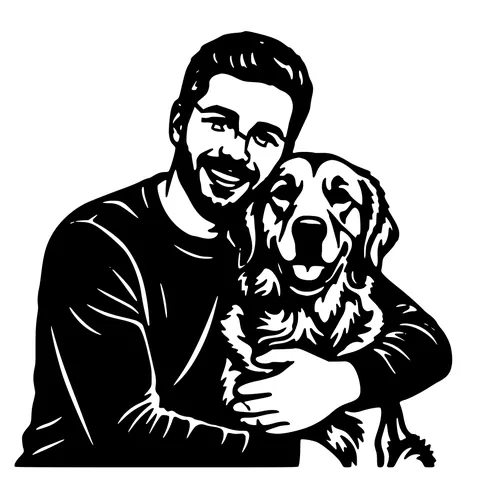
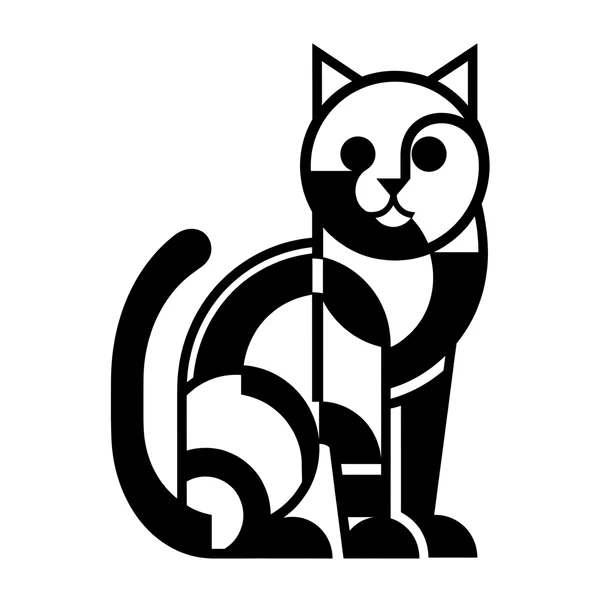
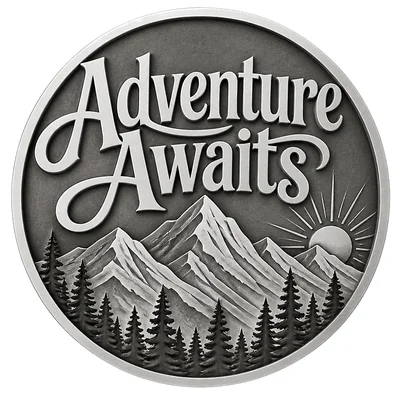
The same photo in every style. Swipe through or let it play.
Ready to convert?
Drop in your file and download a laser-ready vector in seconds.
Open the free editor →Frequently Asked Questions
Which dithering is best for engraving photos on wood?
Floyd-Steinberg is the usual starting point: it preserves fine detail and handles faces well. If the result looks too dark on your machine, try Atkinson, which burns lighter and keeps highlights open. Run a small test patch before the full engrave.
Do I need to invert the photo for slate or glass?
Yes. Slate and glass engrave light marks on a dark surface, the opposite of wood, so the image must be inverted or it engraves as a negative. The editor flips it for you and shows both versions in the preview.
What size and resolution should I export?
Set the real engraving width in millimetres in the editor and it exports the PNG at a matching resolution. Around 10 dots per millimetre (254 DPI) lines up with the interval settings most laser software defaults to, so dots in the file map cleanly to dots on the material.
Is my photo uploaded anywhere?
No. Everything, including the AI background removal, runs locally in your browser. The photo never leaves your computer and nothing is stored on a server.
Does the export work with LightBurn, xTool, and Glowforge?
Yes. The export is a standard PNG at true physical size, which imports directly into LightBurn, RDWorks, the Glowforge App, and xTool Creative Space as an image layer ready to engrave.
Related tools
Photo to Laser Engraving. Tonal Output From Real Photos
Photos carry uneven lighting, blown-out highlights, and busy backgrounds. all of which scorch as artefacts on a laser bed. This tool re-balances exposure, removes the background, and applies a material-tuned tonal curve before the engrave file is rendered.
Convert Image to Laser Engraving. A Walk Through
The step-by-step version: pick a material, drop in your image, the AI applies a material-tuned contrast curve, and you download a tonal PNG plus an SVG wrapper that LightBurn imports as an Image layer.
Remove the Background Before You Laser Engrave
A cluttered background engraves as grey mush behind your subject. One click in the free editor strips it out, privately, in your browser, so the laser burns only what matters.
Edit an SVG for Laser Cutting. Free, In Your Browser
Open any SVG, fix the problems that ruin cuts, and export a clean file. Resize to exact millimetres, bridge floating pieces, close open paths, delete duplicate lines, add kerf, and outline text. Nothing to install.