Edit an SVG for Laser Cutting. Free, In Your Browser
Open any SVG, fix the problems that ruin cuts, and export a clean file. Resize to exact millimetres, bridge floating pieces, close open paths, delete duplicate lines, add kerf, and outline text. Nothing to install.
A free browser editor for fixing SVG files before they hit the laser. Open any SVG, resize it to exact millimetres, bridge floating pieces, thicken thin lines, close open paths, delete duplicate cuts, add a kerf offset, and convert text to outlines. Export a clean SVG or DXF that imports straight into LightBurn, RDWorks, Glowforge, or xTool.
Exact-mm sizing
Type the finished width or height in millimetres and the whole design scales to true physical size before export.
Cut problem finder
Floating pieces, open paths, duplicate lines, and too-thin details are flagged before they ruin material.
Kerf and text tools
Add a kerf offset for press-fit parts and convert text to outlines so the file cuts the same on any machine.
Free and private
Runs entirely in your browser. Your file never leaves your computer, and there is no watermark or signup.
How to use the edit an svg for laser cutting. free, in your browser
- 1
Open your SVG
Drag any SVG into the free editor. It opens instantly in your browser, and the file is processed locally, never uploaded to a server.
- 2
Run the cut check
The editor highlights floating pieces that would fall out, open paths that would engrave instead of cut, details thinner than your material can hold, and duplicate paths that would burn the same line twice.
- 3
Fix and resize
Bridge floating pieces, close open paths, delete duplicates, and thicken thin lines. Then set the exact finished width or height in millimetres.
- 4
Add kerf and outline text
Apply a kerf offset so parts come out at true size after the beam width is burned away, and convert live text to outlines so the file cuts identically on machines without your font installed.
- 5
Export SVG or DXF
Download a clean SVG or DXF that imports straight into LightBurn, RDWorks, the Glowforge App, or xTool Creative Space.
Why SVGs need an edit before they hit the laser
Most SVGs you download were drawn for screens, not for cutting. They arrive with no real-world size, text stored as live fonts, paths left open, and duplicate lines stacked on top of each other. Each of those becomes a physical problem at the machine: the design imports at the wrong size, the text swaps to a different font or vanishes, open paths engrave instead of cutting, and duplicated lines burn the same cut twice and scorch the edge. The editor reads the file, points out each issue, and fixes it in a couple of clicks, so the file you send to the laser behaves the way the preview looks.
Resize to exact millimetres and add a kerf offset
SVG files store size in pixels, or sometimes no unit at all, which is why a design that looked right on screen imports at a surprise size. In the editor you type the finished width or height in millimetres and the geometry scales precisely, so an 80 mm coaster arrives as an 80 mm coaster. Kerf is the sliver of material the beam burns away, usually 0.1 to 0.2 mm on a CO2 laser. For boxes, inlays, and press-fit parts that sliver matters. The kerf tool offsets every path outward or inward by half the beam width so finished parts measure what you designed.
Fix floating pieces, thin lines, and open paths
A stencil letter like O has a centre that falls out the moment the outline is cut, and details thinner than about 1 mm snap or burn away on most materials. The editor finds floating pieces and connects them with small bridges, and flags strokes too thin to survive so you can thicken them before cutting. Open paths are the quieter problem: most laser software treats a closed path as a cut profile and an open one as a line to engrave, so one unnoticed gap turns a cut job into a scribble. The editor closes those gaps and deletes duplicate paths that would burn a line twice.
See it in action
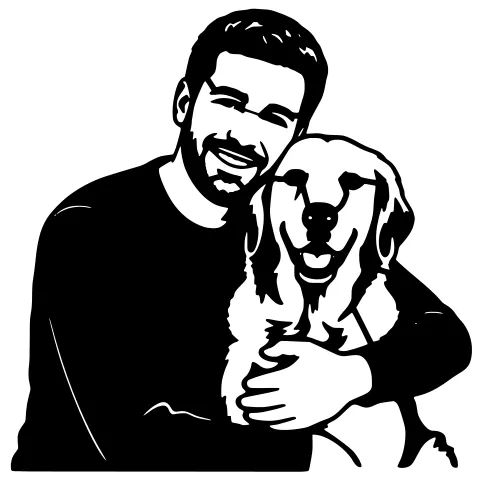
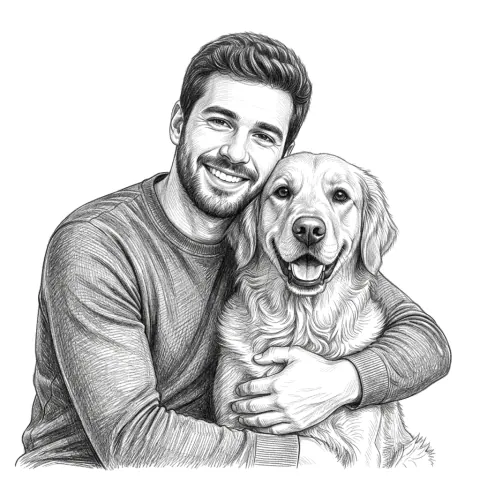
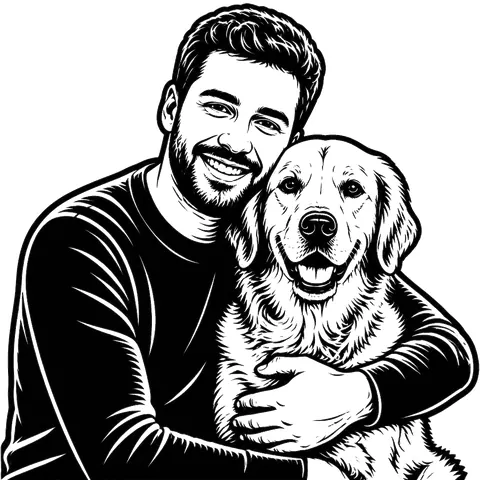
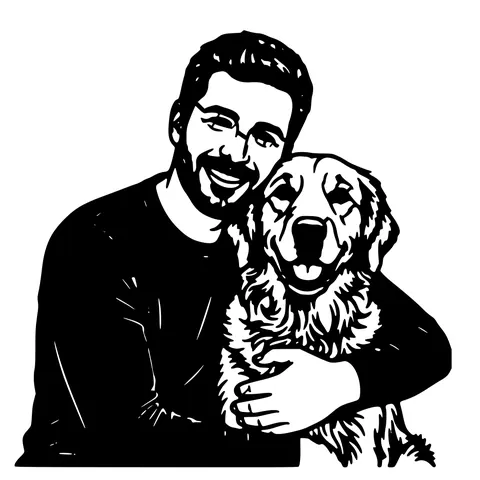
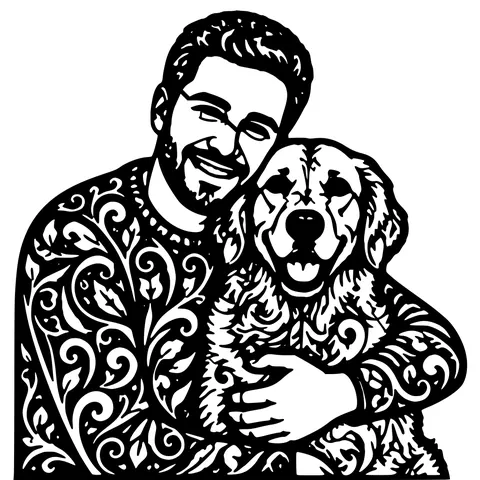
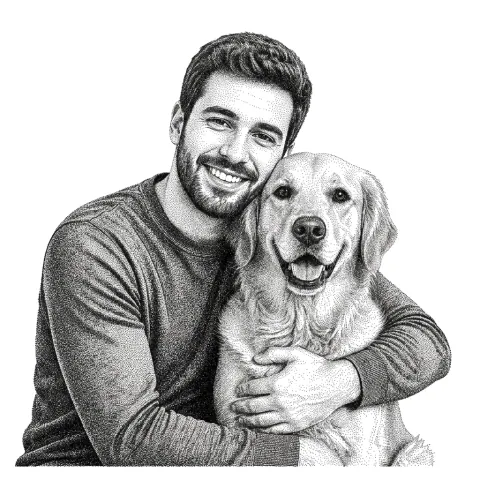
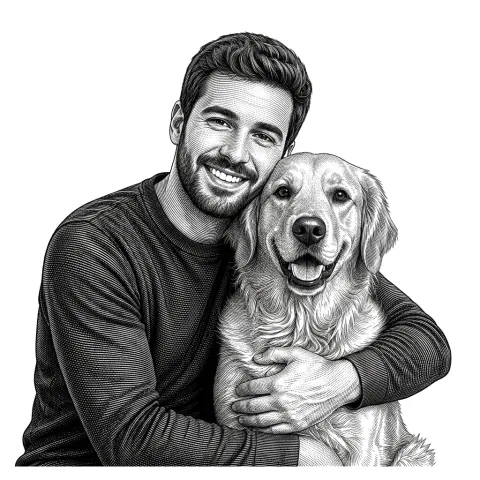
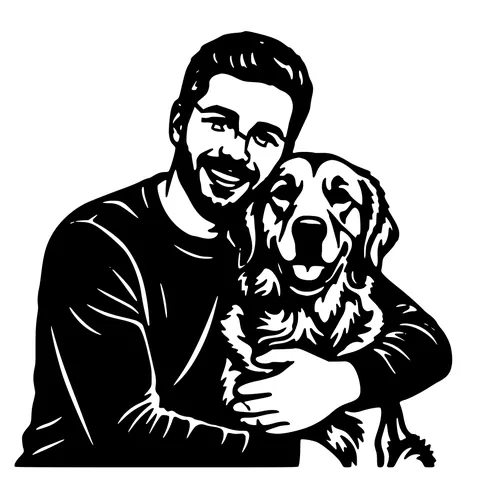
The same photo in every style. Swipe through or let it play.

Ready to convert?
Drop in your file and download a laser-ready vector in seconds.
Open the free editor →Frequently Asked Questions
Can I edit an SVG for laser cutting without installing software?
Yes. The StencilCut editor runs entirely in your browser, free, with no signup. Open the SVG, fix sizing and geometry, and export a clean SVG or DXF for your laser software.
How do I resize an SVG to exact millimetres?
Open the file in the editor, type the finished width or height in mm, and export. The geometry is scaled precisely so it lands at true physical size in LightBurn, RDWorks, the Glowforge App, and xTool Creative Space.
What is kerf and do I need to compensate for it?
Kerf is the material the beam vaporises, typically 0.1 to 0.2 mm wide on a CO2 laser. For decorative cuts you can ignore it. For boxes, joints, and inlays that need a snug fit, apply a kerf offset in the editor, then verify the exact value with a test cut on your machine and material.
Why does my laser cut the same line twice?
The SVG almost certainly has duplicate paths stacked on top of each other, a common leftover from design exports. The editor detects identical overlapping paths and deletes the extras, so each line cuts once.
Is my SVG uploaded when I edit it?
No. The editor processes the file locally in your browser. Nothing is sent to a server, which also makes it safe for client artwork and unreleased designs.
Related tools
PNG to SVG Converter. Built for Transparent Logos and Icons
Drop in a PNG, get back a scalable SVG that keeps the alpha exactly where it was. Best for logos, icons, line art, and screenshots where the transparent background is part of the design.
Image to DXF Converter. R12 Output, Auto-Bridged
A DXF you can drop straight into LightBurn, RDWorks, Fusion 360, or AutoCAD. R12 / AC1009 flavour for universal compatibility, sized at 150 mm wide, auto-bridged for stencil cutting.
Remove the Background Before You Laser Engrave
A cluttered background engraves as grey mush behind your subject. One click in the free editor strips it out, privately, in your browser, so the laser burns only what matters.
Prepare a Photo for Laser Engraving, Start to Finish
Crop, brighten, strip the background, and convert to dots the laser can actually burn. The whole photo-to-engraving workflow lives in one free browser editor, with true-size export at the end.
Laser Cut Privacy Screen Generator
Pick a shape, pick a pattern, get a cut file. Panels, gates, and screens with the pattern already fitted to the outline and the material guaranteed to hold together.