StencilCut vs StencilVector, An Honest Comparison
How StencilCut and StencilVector compare for turning photos into laser-ready stencils, and which fits your workflow.
StencilCut and StencilVector both turn photos into laser-ready stencils with AI. StencilCut focuses on a full photo-to-file pipeline, background removal, two AI renderings to compare, auto-bridging, and SVG, DXF, and engraving output, plus an in-browser editor and 3D preview. This page is an honest comparison of where each tool fits, so you can pick the right one for your machine and workflow.
Two AI renderings
StencilCut runs two AI models per photo so you pick the better result, not the only one.
Auto-bridging
Floating islands are detected and bridged so the stencil cuts as one clean piece.
Editor + 3D
An in-browser editor for bridges, text, and sizing, plus a 3D preview and 3MF export.
Free to try
Try StencilCut free with no signup, then compare the output to StencilVector yourself.
How to use the stencilcut vs stencilvector, an honest comparison
- 1
Compare the output
Try the same photo in both and compare how clean and recognisable the result is.
- 2
Check file formats
Confirm each exports the formats your laser software needs, SVG and DXF for cutting.
- 3
Check connectivity
See how each handles floating pieces, a stencil must cut as one connected piece.
- 4
Pick for your machine
Choose the tool whose output and formats fit your laser and your projects.
What both tools do well
Both StencilCut and StencilVector use AI to convert a photo into a laser-cut stencil and analyse the result so floating pieces stay connected. If your goal is "photo in, cuttable SVG out" without manual tracing, either tool gets you most of the way there. Both export vector files that open in common laser software.
Where StencilCut focuses
StencilCut runs two different AI models on every photo and shows them side by side, so you choose the stronger result rather than accepting one. It also covers the full pipeline beyond cutting: background removal, engraving output (grayscale for wood and slate), a coaster and wall-art mode, an in-browser editor for bridges and text, and a 3D preview with 3MF export. The aim is to take a photo all the way to a finished, laser-ready file.
When another tool might fit better
No single tool is best for everyone. If you only ever need one specific vectorisation style and prefer that tool's exact look, stick with what gives you the result you like. The honest test is simple: run the same photo through both, compare the output and the file formats against your machine, and pick the one that needs the least cleanup for your projects.
See it in action
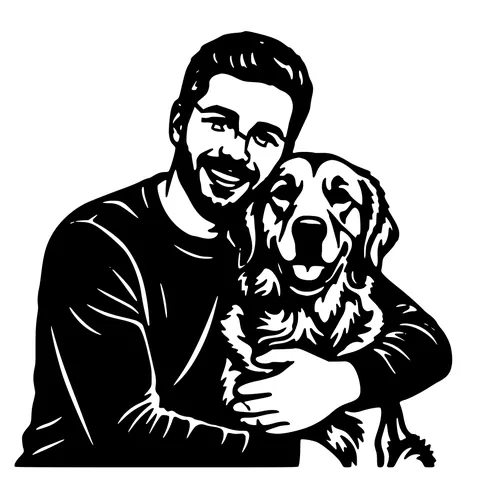
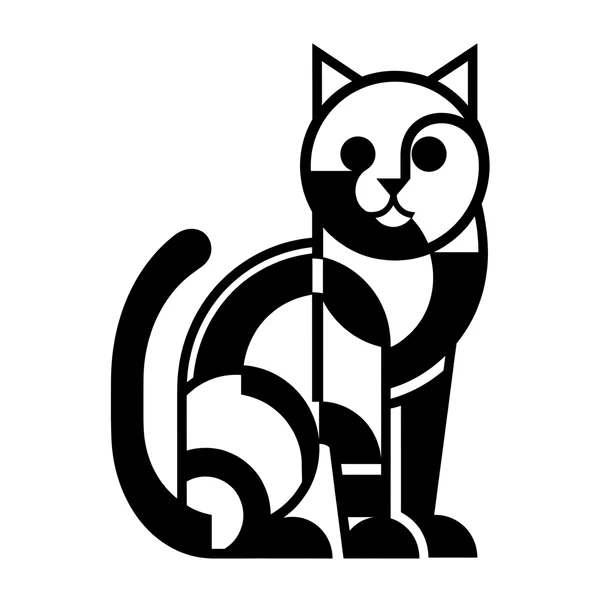
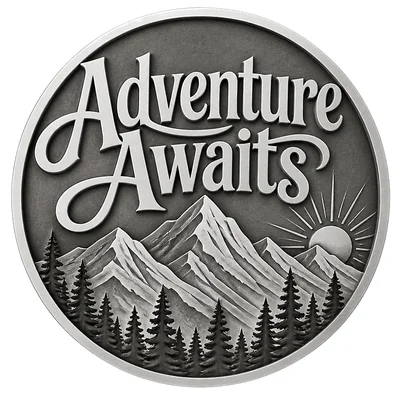
The same photo in every style. Swipe through or let it play.

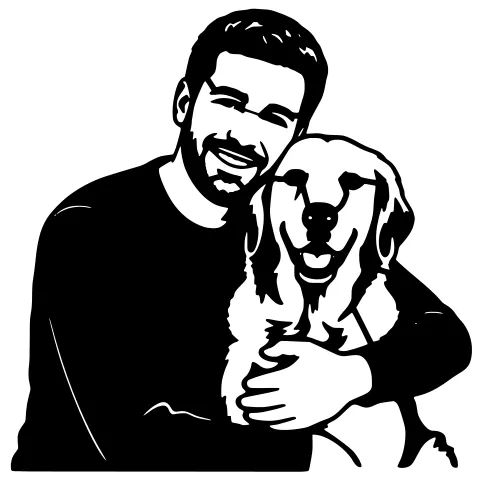


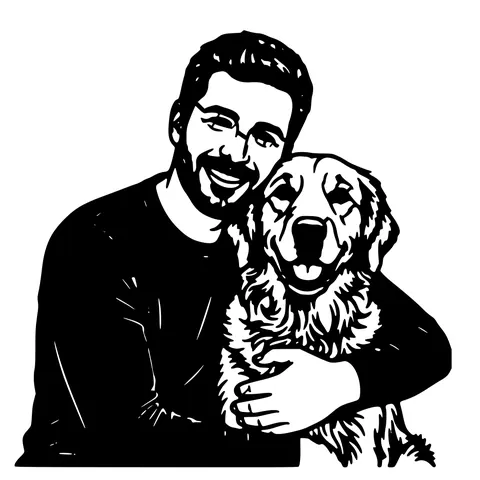
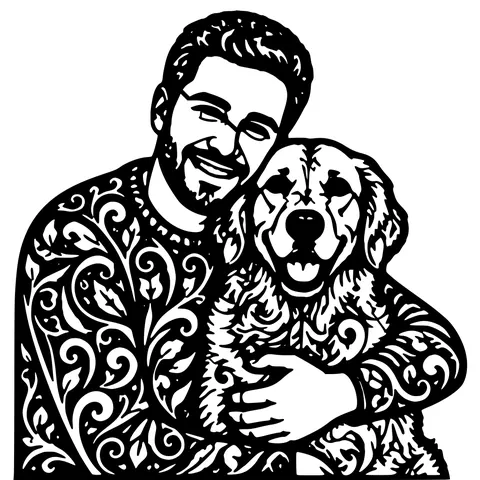
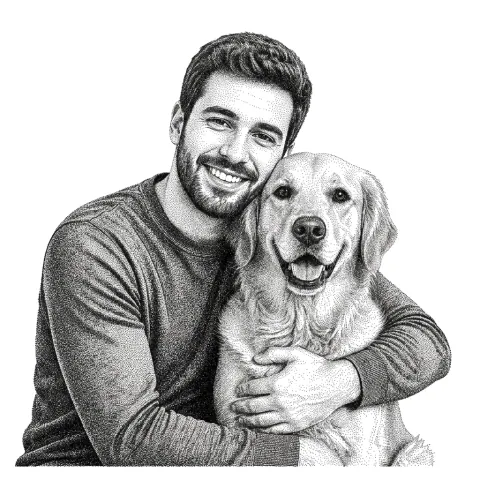

Ready to convert?
Drop in your file and download a laser-ready vector in seconds.
Open the Converter →Frequently Asked Questions
Is StencilCut a StencilVector alternative?
Yes. Both turn photos into laser-ready stencils with AI. StencilCut adds two-AI comparison, engraving output, an editor, and 3D/3MF export. The best way to choose is to run the same photo through both.
Does StencilCut export SVG and DXF?
Yes, every design exports as SVG and DXF, sized in millimetres, plus a PNG for engraving. All open in LightBurn, Glowforge, xTool, and more.
Which is better for laser cutting?
It depends on your photo and machine. StencilCut's edge is showing two AI results so you pick the cleaner one, plus auto-bridging so the piece cuts as one. Try both on your own photo to decide.
Is StencilCut free?
You can try StencilCut free with no account. After that, pay-as-you-go credits; SVG and DXF downloads are always free.
Related tools
Best AI Laser Stencil Generator: An Honest 2026 Guide
A plain-English buyer’s guide to turning a photo into a laser-ready stencil. What the job actually requires, where StencilCut fits, when another tool is the better call, and what StencilCut still does not do well.
Photo to Stencil Generator. AI Background Removal Built In
Photos are the hardest input for a stencil maker. busy backgrounds, soft edges, multiple subjects. This tool removes the background, isolates the subject, adds bridges, and hands you a one-piece laser-ready cutout.
StencilCut vs Inkscape for Laser Stencils
Inkscape is a free, powerful, fully manual vector editor. StencilCut is an automated photo-to-stencil pipeline. Here is an honest look at what each does better and which one fits your project.