Free Image to SVG: Honest Alternatives Compared
A straight comparison of the free ways to turn an image into an SVG: Inkscape Trace Bitmap, browser tracers, and StencilCut’s converter. What each is genuinely good at, and where each one falls short.
There are three common free routes from a raster image to an SVG: Inkscape’s Trace Bitmap (manual, offline), online one-click tracers (fast, often limited or watermarked), and StencilCut’s converter (free tier, tuned for laser and cut workflows). None is best at everything. This page compares them honestly so you pick the right one for your image and your goal.
Genuinely free start
StencilCut’s converter runs in the browser with free SVG and DXF downloads, no account to begin.
Laser-tuned output
Optional auto-bridging makes the SVG cut as one piece, which generic tracers do not do.
SVG and DXF together
Both vector formats every conversion, so CAD and laser software both open it.
Honest about limits
For general illustration or manual editing, Inkscape or a pure tracer may suit you better. We say so.
What are the free ways to convert an image to SVG?
Three main options. Inkscape Trace Bitmap is a free, offline, manual tracer inside a full vector editor: powerful, but you tune the settings yourself and clean up the paths. Online one-click tracers convert in the browser fast, but many cap free use, add watermarks, or produce messy paths on anything but simple line art. StencilCut’s converter is browser-based and free to start, and it is tuned for cut and engrave output, with optional auto-bridging so the result holds together when cut.
How the main free options compare
For clean line art and logos, all three do well, and a quick online tracer or StencilCut is fastest. For photos, a generic tracer produces dense, messy output, while StencilCut removes the background and simplifies first, giving a cleaner result. For full manual control and offline use with no limits, Inkscape wins but takes longest and has a learning curve. For laser or vinyl cutting specifically, StencilCut is the only one of the three that bridges floating islands automatically so the cut stays in one piece.
Where does StencilCut’s converter fit?
It is the fast, free, laser-aware option. You drop in a PNG, JPG, or WEBP and get back an SVG and a DXF, with auto-bridging available for stencils. The free converter allows five conversions per IP per day, thirty per day once you sign in free, with no watermark and free downloads. If your image is really a photo, the AI Builder removes the background and simplifies the subject first, which a plain tracer does not do.
What StencilCut does not do well yet
For general-purpose illustration where you want to keep editing the vector by hand, Inkscape or Illustrator is a better home than StencilCut, which is not a manual editor. A pure tracer may preserve more raw detail when you actually want every speck traced rather than simplified. StencilCut needs an internet connection and has free-tier limits, where Inkscape is offline and unlimited. And very small text or extremely fine detail traces chunky in any raster-to-vector tool, including ours. Pick the tool that matches your real goal.
See it in action
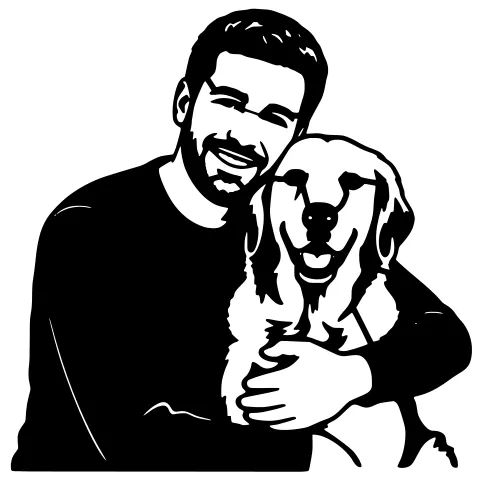
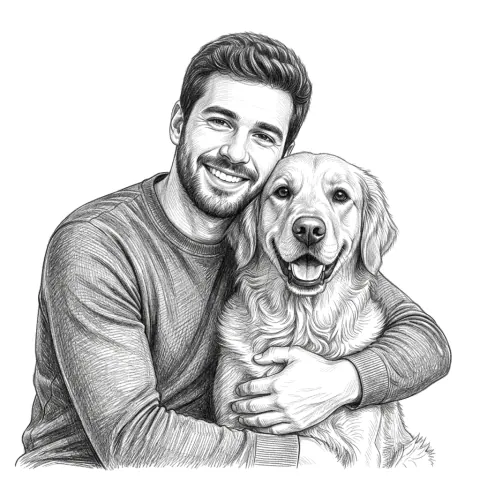
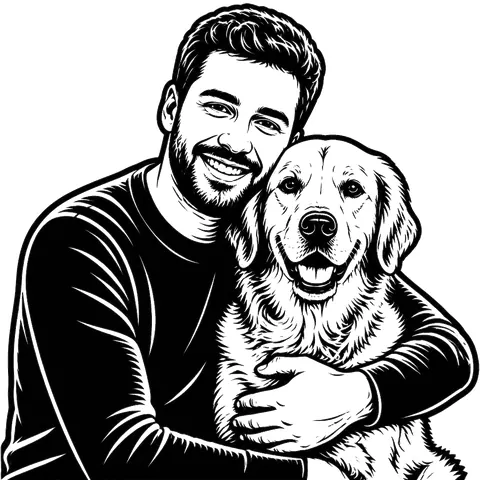
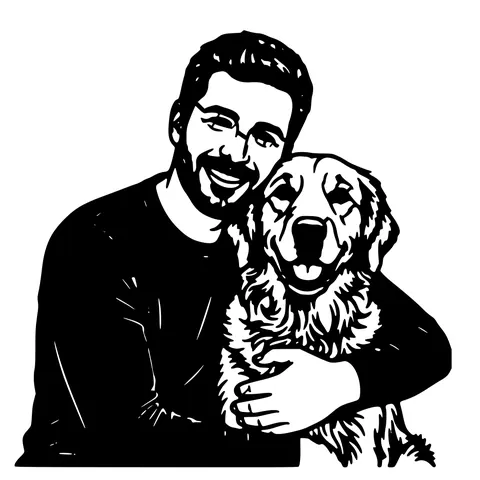
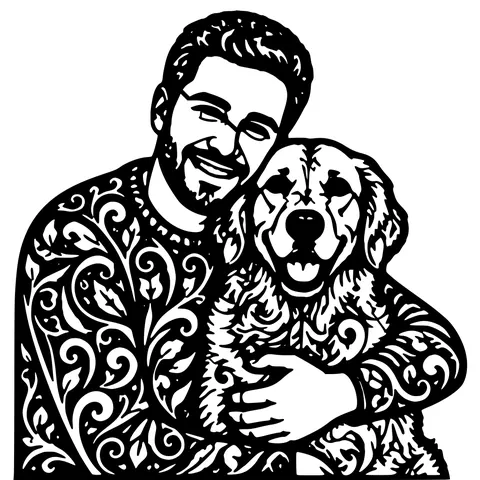
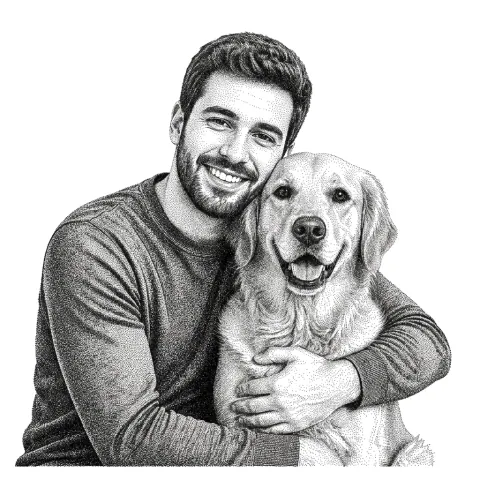
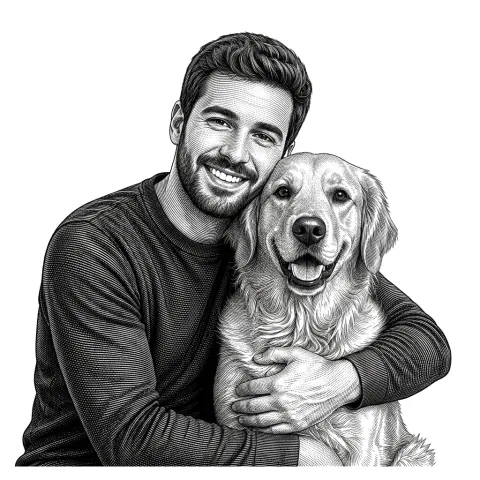
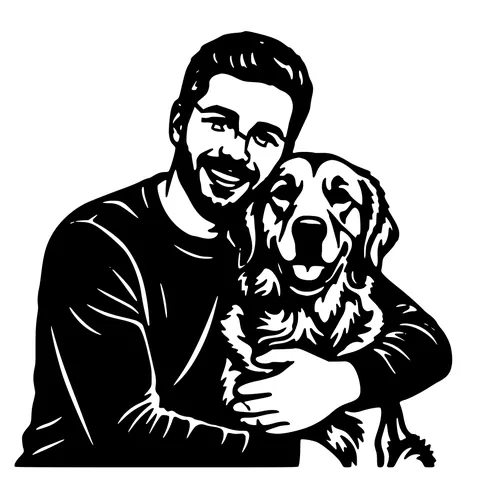
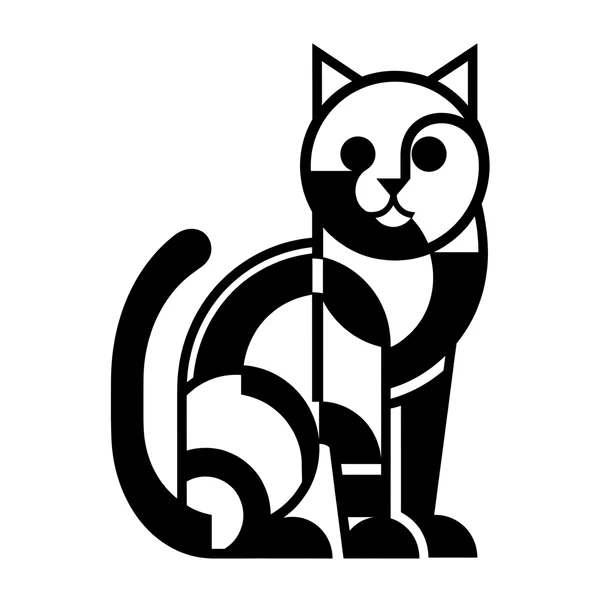
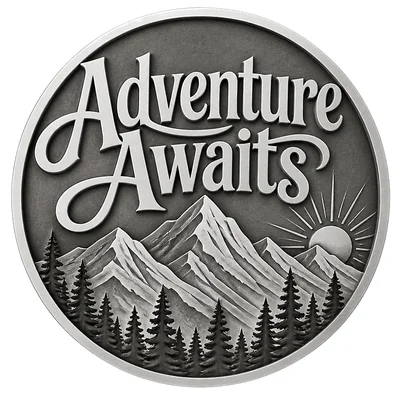
The same photo in every style. Swipe through or let it play.

Ready to convert?
Drop in your file and download a laser-ready vector in seconds.
Open the free Converter →Frequently Asked Questions
What is the best free image to SVG converter?
It depends on the image and goal. For laser or vinyl cutting, StencilCut is tuned for it and bridges floating islands automatically. For manual editing and offline use, Inkscape Trace Bitmap is the strongest free option. For a quick one-off trace of simple line art, a browser tracer is fastest, though many limit free use.
Is StencilCut’s image to SVG converter really free?
Yes to start. It runs in the browser with free SVG and DXF downloads, no account needed, at five conversions per IP per day. Sign in free for thirty per day. Past that it is a credit per conversion, with no watermark and credits that never expire.
Is Inkscape Trace Bitmap better than an online converter?
It gives more control and runs offline with no limits, but it requires manual tuning and path cleanup. Online converters and StencilCut are faster and need no setup. For laser stencils, StencilCut adds background removal and auto-bridging that Trace Bitmap does not.
Why do online image to SVG tools produce messy results on photos?
A photo is continuous-tone, not line art, so a plain tracer turns every tonal shift into stacked paths. StencilCut removes the background and simplifies the subject into bold shapes first, which is why its output is cleaner for photos than a generic tracer.
Do these tools keep a transparent background?
StencilCut reads the alpha channel so a transparent PNG comes out as a clean silhouette rather than a white box. Generic tracers vary, and many ignore transparency. Inkscape can preserve it with the right settings.
Which free tool is best for laser cutting?
StencilCut, because it is the only one of the three that bridges floating islands automatically and exports a DXF alongside the SVG, both sized for laser software. Inkscape can do it manually; a generic tracer usually cannot.
What does StencilCut not do well for image to SVG?
It is not a manual vector editor, so for ongoing hand-editing Inkscape or Illustrator is better. It simplifies rather than preserving every speck, it needs internet and has free-tier limits, and very small text traces chunky as in any raster-to-vector tool.
Related tools
PNG to SVG Converter. Built for Transparent Logos and Icons
Drop in a PNG, get back a scalable SVG that keeps the alpha exactly where it was. Best for logos, icons, line art, and screenshots where the transparent background is part of the design.
JPG to SVG Converter. Built for Compressed Photos
JPGs carry a layer of compression noise PNG doesn't. This converter does a JPEG-aware cleanup pass before tracing, so photo logos and scanned sketches come out as crisp paths instead of confetti.
Image to SVG Converter. One Tool For Every Format
Drop in a PNG, JPG, WEBP, or even a screenshot and get a clean scalable SVG back. The converter auto-tunes itself to the input format, so you don't pick threshold sliders or trace settings.
StencilCut vs Inkscape for Laser Stencils
Inkscape is a free, powerful, fully manual vector editor. StencilCut is an automated photo-to-stencil pipeline. Here is an honest look at what each does better and which one fits your project.