StencilCut vs ImagR, An Honest Comparison
How StencilCut and ImagR compare for preparing photos for laser engraving and cutting, and which fits your workflow.
StencilCut and ImagR both prepare photos for laser work, with slightly different focuses. ImagR centres on image preparation for engraving. StencilCut covers the full pipeline, cutting (auto-bridged SVG and DXF), engraving (grayscale output), background removal, an editor, and 3D preview. This page is an honest comparison so you can pick the right tool for cutting, engraving, or both.
Cutting + engraving
StencilCut does both: auto-bridged SVG/DXF for cutting and grayscale output for engraving.
Two AI renderings
Two AI models per photo so you pick the stronger result.
Editor + 3D
In-browser editor for bridges, text, and sizing, plus 3D preview and 3MF export.
Free to try
Try StencilCut free with no signup and compare against ImagR on your own photo.
How to use the stencilcut vs imagr, an honest comparison
- 1
Decide cut or engrave
Are you cutting a stencil or engraving a photo? That decides which tool fits best.
- 2
Try the same photo
Run one photo through both and compare the result for your material.
- 3
Check the formats
Confirm SVG/DXF for cutting or a clean image for engraving, whichever you need.
- 4
Pick your tool
Choose the one whose output needs the least cleanup for your projects.
Cutting vs engraving focus
ImagR is well known for preparing photos for laser engraving, getting the tones right so a photo burns cleanly onto wood or metal. StencilCut does engraving too, but it also covers cutting: it turns a photo into a connected, auto-bridged stencil you can cut as one piece, which a pure engraving tool does not produce.
Where StencilCut focuses
StencilCut aims to take a photo all the way to a finished laser file for either job. It removes the background, runs two AI models so you compare results, auto-bridges floating pieces for cutting, exports SVG, DXF, and a grayscale engraving image, and includes an editor and a 3D preview with 3MF export. If you do both cutting and engraving, that breadth saves switching tools.
When ImagR might fit better
If your work is purely photo engraving and you already get results you like from ImagR's tone preparation, there is no reason to switch. The honest test is to run the same photo through both for the job you actually do, cutting or engraving, and keep the one that needs the least manual cleanup.
See it in action
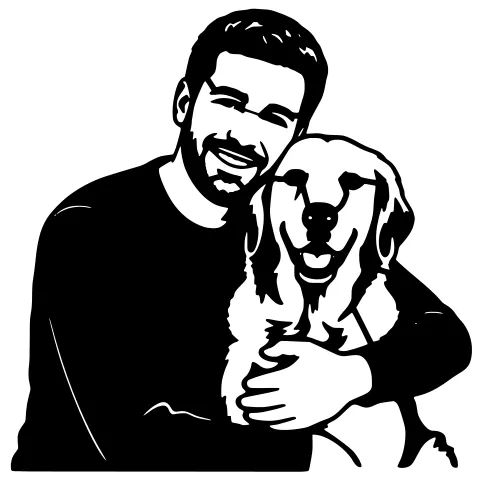
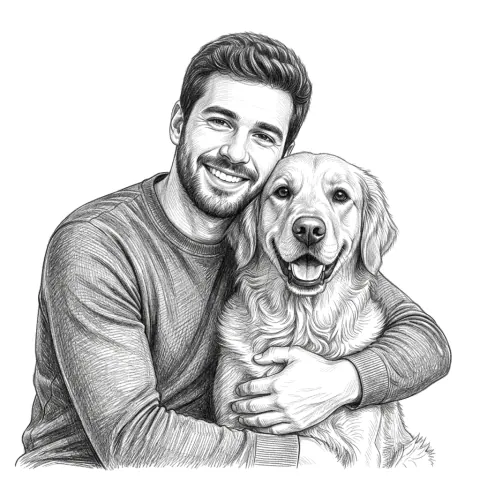
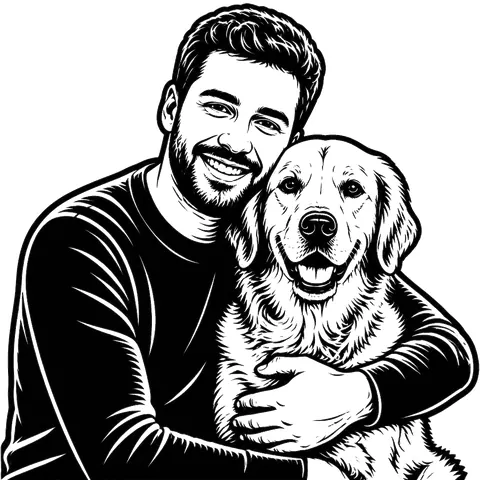
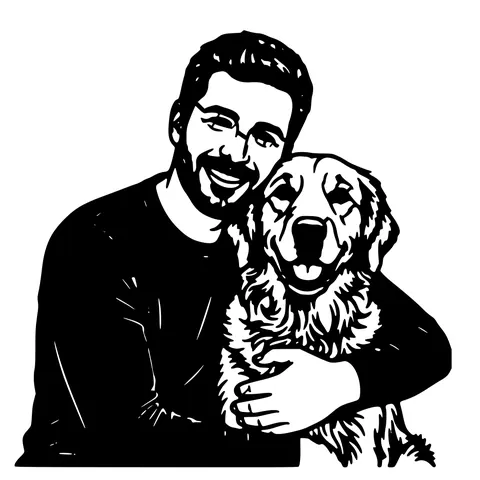
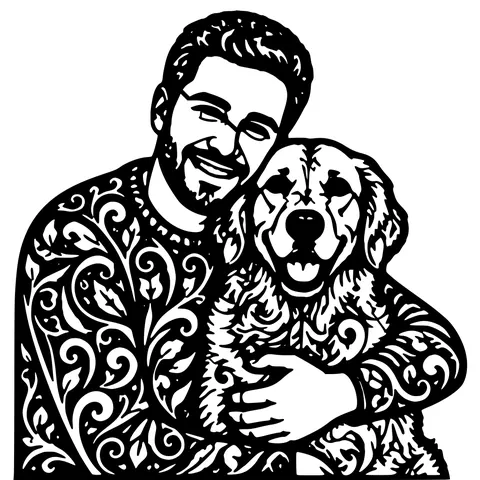
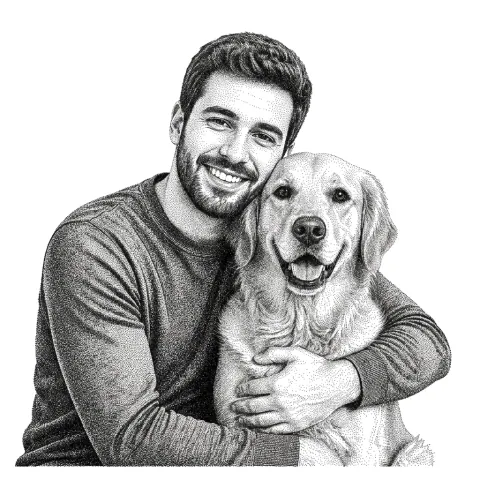
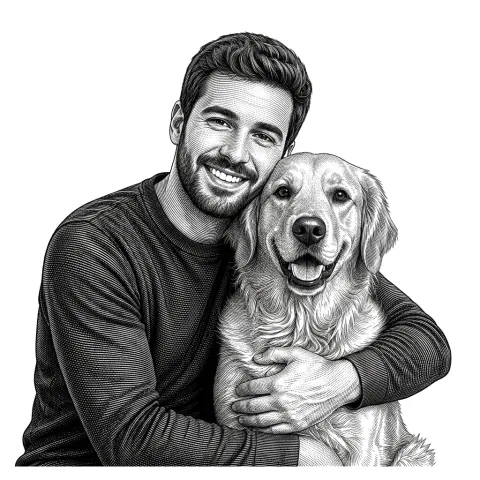
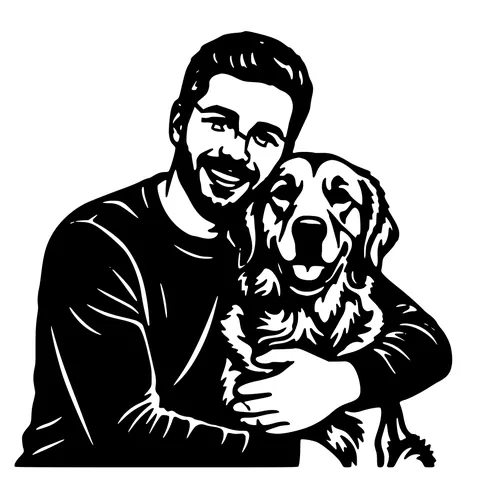
The same photo in every style. Swipe through or let it play.


Ready to convert?
Drop in your file and download a laser-ready vector in seconds.
Open the Converter →Frequently Asked Questions
Is StencilCut an ImagR alternative?
Yes, with a wider scope. ImagR focuses on photo-to-engraving preparation; StencilCut does engraving plus cutting (auto-bridged SVG/DXF), background removal, an editor, and 3D export.
Which is better for engraving photos?
Both prepare photos for engraving. ImagR is engraving-focused; StencilCut also exports a clean grayscale engraving image and lets you compare two AI results. Try the same photo in both.
Can StencilCut cut stencils, not just engrave?
Yes, that is a core difference. StencilCut produces connected, auto-bridged SVG and DXF that cut as one piece, which a pure engraving tool does not.
Is StencilCut free?
You can try it free with no account. After that, pay-as-you-go credits; SVG, DXF, and PNG downloads are always free.
Related tools
Best AI Laser Stencil Generator: An Honest 2026 Guide
A plain-English buyer’s guide to turning a photo into a laser-ready stencil. What the job actually requires, where StencilCut fits, when another tool is the better call, and what StencilCut still does not do well.
Photo to Laser Engraving. Tonal Output From Real Photos
Photos carry uneven lighting, blown-out highlights, and busy backgrounds. all of which scorch as artefacts on a laser bed. This tool re-balances exposure, removes the background, and applies a material-tuned tonal curve before the engrave file is rendered.
StencilCut vs StencilVector, An Honest Comparison
How StencilCut and StencilVector compare for turning photos into laser-ready stencils, and which fits your workflow.