xTool File Converter, Photo to Laser-Ready SVG & DXF
Drop in a photo and get a clean SVG and DXF that import straight into xTool Creative Space, sized in millimetres and ready to cut or engrave.
The xTool file converter turns any photo or image into a laser-ready SVG and DXF for xTool Creative Space. It removes the background, simplifies the photo into clean cut paths, bridges floating pieces so the design cuts as one, and sizes everything in millimetres. Works with the xTool D1, D1 Pro, P2, S1, F1, and M1. First conversion is free, no account needed.
Creative Space ready
SVG and DXF that import cleanly into xTool Creative Space with no re-scaling or repair.
Auto-bridged cuts
Loose pieces are connected automatically so your stencil cuts as one solid piece on the D1, P2, or S1.
True millimetre size
Output is sized in mm so a 100mm design imports as 100mm, not a guess.
Free to try
First conversions free, no email. Cut, engrave, and download SVG/DXF with no watermark.
How to use the xtool file converter, photo to laser-ready svg & dxf
- 1
Upload your photo
Drag in a JPG, PNG, or WEBP. The AI removes the background and isolates your subject.
- 2
Choose cut or engrave
Pick a cut stencil (SVG/DXF) or an engraving (grayscale image). The pipeline tunes for the format.
- 3
Preview and bridge
Floating islands are auto-bridged so the cut holds together as one piece. Preview before you download.
- 4
Open in xTool
Download the SVG or DXF and import it into xTool Creative Space, it lands at the right physical size, ready to set power and speed.
Why a converter built for xTool
xTool Creative Space opens SVG and DXF, but a raw photo or a generic auto-trace usually imports as a messy tangle of paths or a solid blob with no internal detail. This converter is tuned for laser work: it isolates the subject, turns the photo into bold connected shapes, and exports geometry that Creative Space reads as clean cut lines. The result imports at the correct size and is ready to assign to a cut or score layer without hand-fixing.
Cut or engrave on any xTool
For a cut stencil you get an SVG and a DXF with auto-bridged paths so nothing falls out on the D1, D1 Pro, S1, or F1. For engraving you get a clean grayscale image you drop onto an image layer and engrave on wood, slate, leather, or acrylic. The M1 (which also does vinyl) handles the SVG cut paths the same way.
What imports cleanly
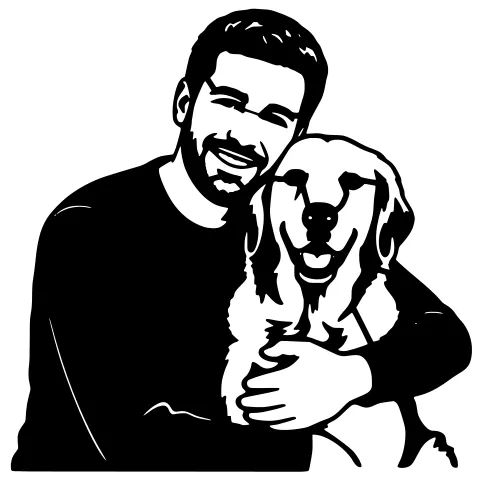
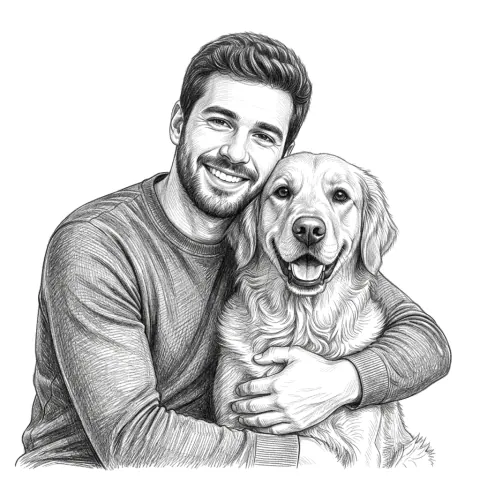
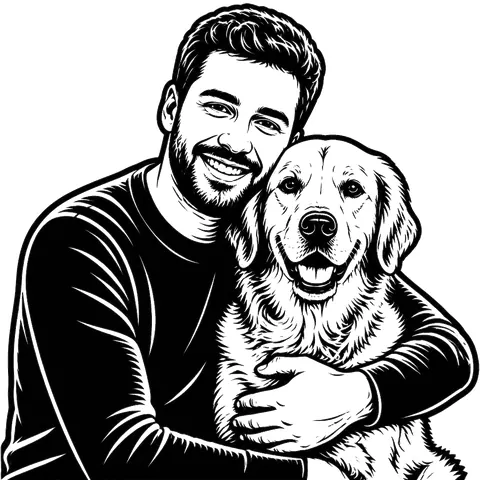
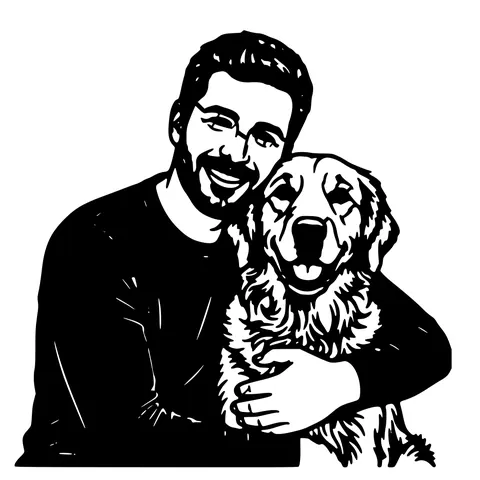
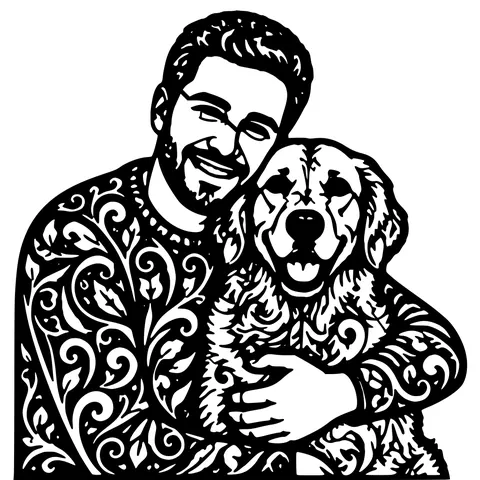
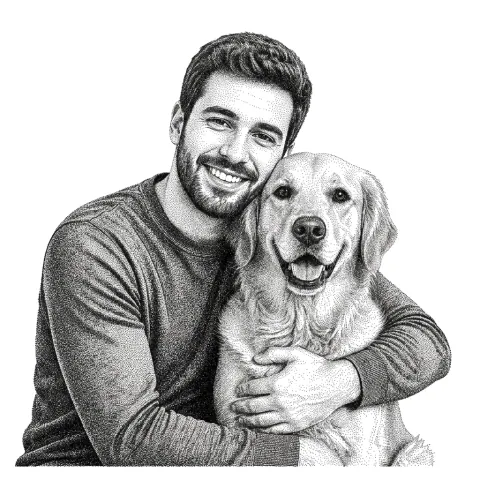
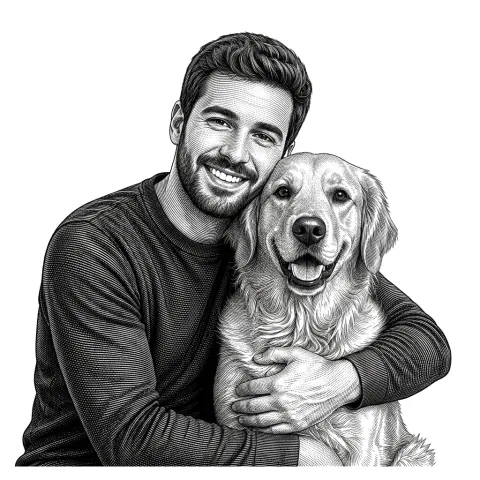
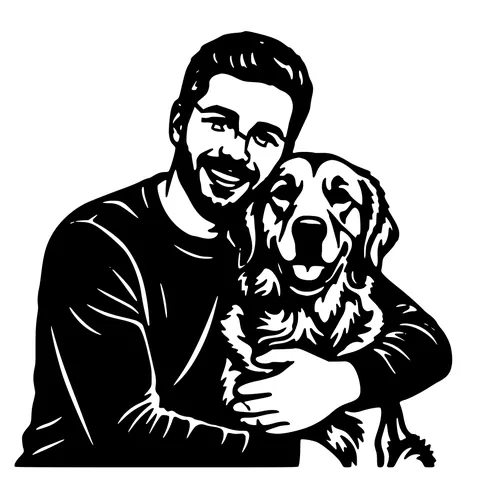
Pet photos, portraits, logos, line art, and silhouettes all convert well. Busy photos with lots of background are fine, the background is removed first. If you want fine fur or hair detail, use an engrave style; cut styles simplify detail into bold connected shapes so the piece is strong enough to cut.
See it in action
The same photo in every style. Swipe through or let it play.

Ready to convert?
Drop in your file and download a laser-ready vector in seconds.
Open the Converter →Frequently Asked Questions
What file types does xTool Creative Space accept?
SVG and DXF for vector cutting and scoring, plus PNG and JPG for image engraving. This converter gives you SVG and DXF for cuts and a PNG for engraving, all three.
Will the design import at the right size?
Yes. The SVG and DXF are written in millimetres, so a design sized at 100mm here imports as 100mm in Creative Space. No re-scaling needed.
Which xTool machines does it work with?
Any xTool that runs Creative Space: D1, D1 Pro, P2, P2S, S1, F1, F1 Ultra, and M1. The files are standard SVG/DXF, so they work on every model.
Can I engrave a photo on wood with my xTool?
Yes, pick an engrave style and you get a grayscale image to drop onto an image layer. Darker areas burn deeper, lighter areas shallower.
Is it free?
Your first conversions are free with no account. After that, pay-as-you-go credits, and SVG/DXF downloads are always free.
Related tools
Glowforge File Converter. Standard SVG, Drops Into the App
A vectorizer tuned to produce SVGs the Glowforge App reads without complaint. Closed filled paths, no rendering tricks, sized at 150 mm so it lands inside the Basic, Plus, Pro, or Aura bed at a sane scale.
LightBurn DXF Converter. R12, Closed, mm-Unit
A DXF you can drop into LightBurn without the "unclosed paths" warning. R12 / AC1009 with closed POLYLINE entities, written in millimetres so "Use file units" lands at the correct physical size.
Photo to Stencil Generator. AI Background Removal Built In
Photos are the hardest input for a stencil maker. busy backgrounds, soft edges, multiple subjects. This tool removes the background, isolates the subject, adds bridges, and hands you a one-piece laser-ready cutout.